 Katlendar
Guide
Blocks
Everything on the calendar is a block: a task session, an event or a frame. How to make, move and change them.
Task, event or frame#
Whatever you put on the calendar is one of three kinds of block. When you draw a new one, the window that opens asks which kind it is.
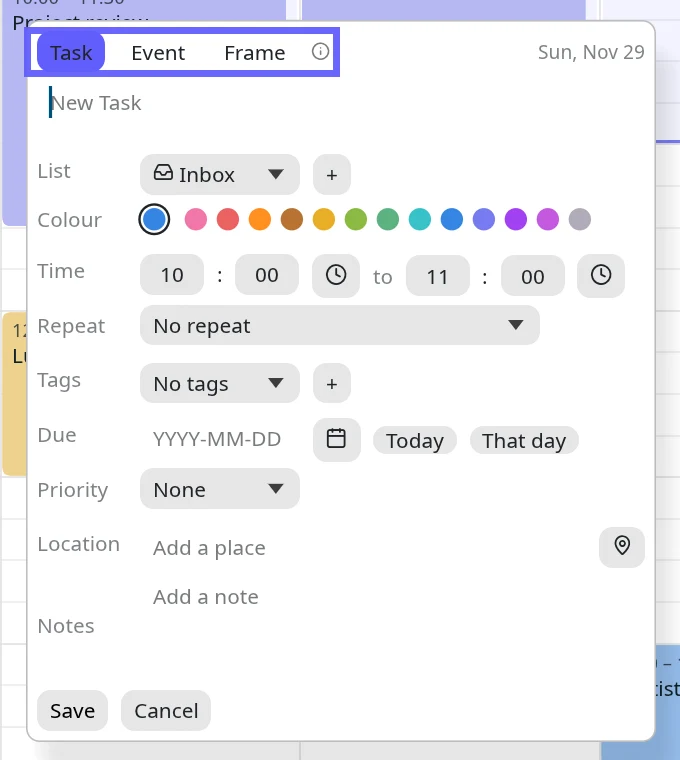
| Kind | What it is | Where it lives |
|---|---|---|
| Task | Time booked to work on a task. The task stays in your list until you tick it off. | A task list |
| Event | An appointment: a meeting, a dentist visit, a trip. | One of your calendars |
| Frame | Time kept free, usually every week, for a kind of work. The planner fills it with matching tasks. | One of your calendars, but it is never sent to a server |
The difference between a task and an event matters: an event happens at its time whether you are ready or not, while a task is work you have to do and can move. Katlendar can plan tasks for you; it never moves your events.
Make a block#
- Draw it. Press and drag on an empty part of the calendar, then pick Task, Event or Frame, give it a name and Save.
- With the keyboard. C makes an event, B a frame and Ctrl+T a task (see Quick add).
- From the task panel. Drag a task onto the calendar to give it a session. It gets a block as long as the task's duration, or Default block length if it has none.
A new event goes into your default calendar, a new task into your default task list.
Move and resize#
Drag a block to move it, also to another day; drag its top or bottom edge to change its length.
Blocks snap to 15 minutes. Change that with Time dragging resolution, or press [ and ] to change how finely the grid is drawn.
Ctrl+Z undoes the last change.
The block menu#
Right-click a block to see what you can do with it. For a task session:
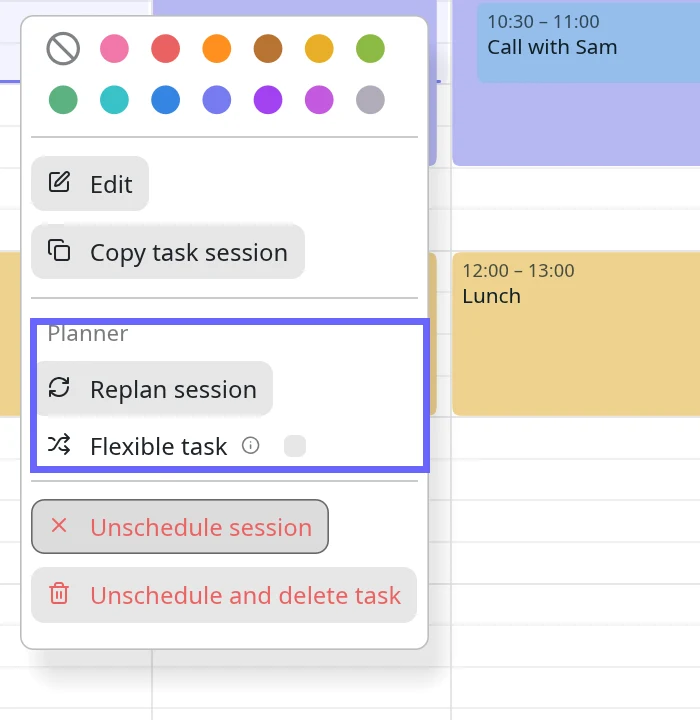
- Colour dots recolour the block.
- Edit opens the editor (or double-click the block, or press E).
- Copy task session copies it (Ctrl+C); right-click an empty spot and choose Paste here.
- Planner: - Replan session lets the planner find a new place for it. - Flexible task allows the planner to move it to make room for more important work. See Flexible tasks.
- Reschedule this session (Shift+R) moves it to the next free time.
- Complete & schedule more time (Shift+F) ticks off this session and books a follow-up.
- Split & reschedule remaining time (Shift+S) ends the session now and books the rest later.
- Unschedule session takes it off the calendar; the task stays in your list.
- Unschedule and delete task removes both.
For an event, the menu offers Edit, Copy event, the colour and Delete event; for a repeating event, Delete this and following and Delete all events too. An event from a read-only calendar can only be copied, but you can keep Side notes on it: notes of your own that stay on your computer.
The editors#
Double-click a block to edit it.
Task session editor#
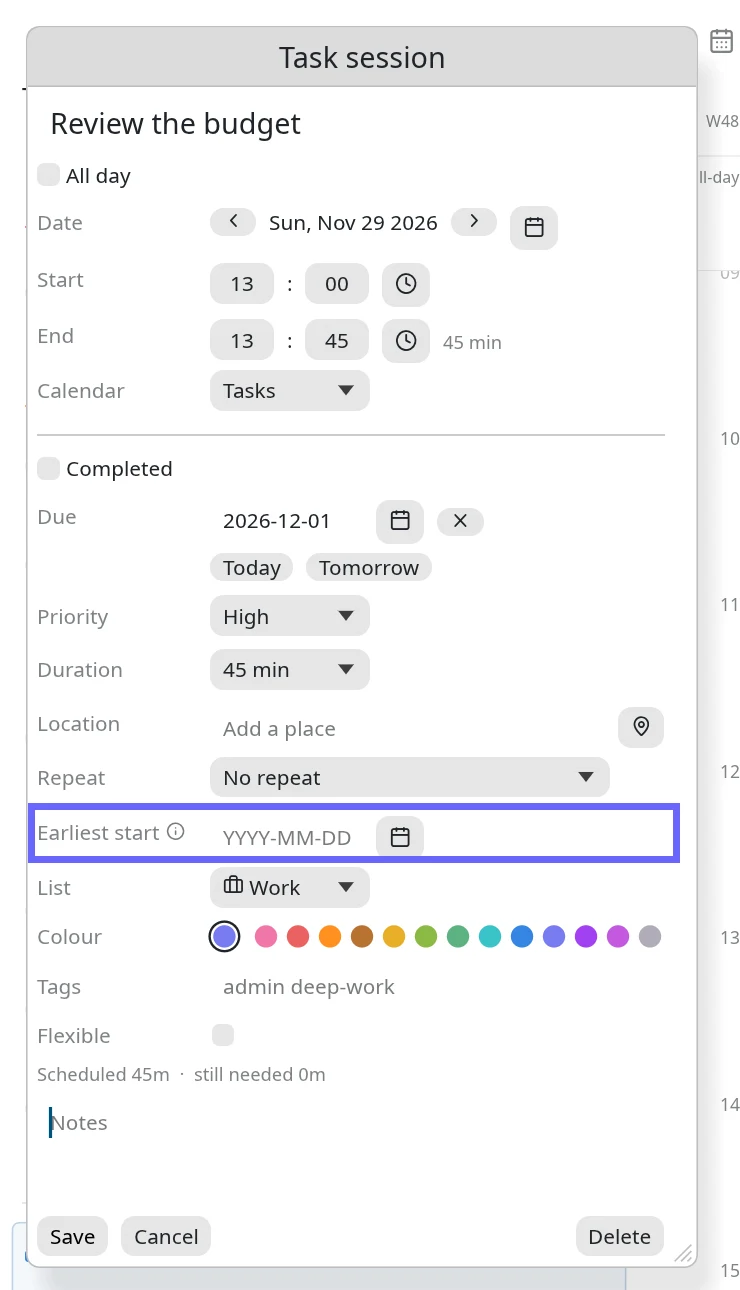
Besides the time, a task has a Due date, Priority, Duration (how long the whole task takes), List, Colour, Tags, Location, Repeat and Notes. Two fields are only for the planner:
- Earliest start: the planner leaves the task alone until this day. See Earliest start.
- Flexible: see Flexible tasks.
Under the fields, a line such as Scheduled 45m · still needed 0m shows how much of the task's duration has a session.
Event editor#
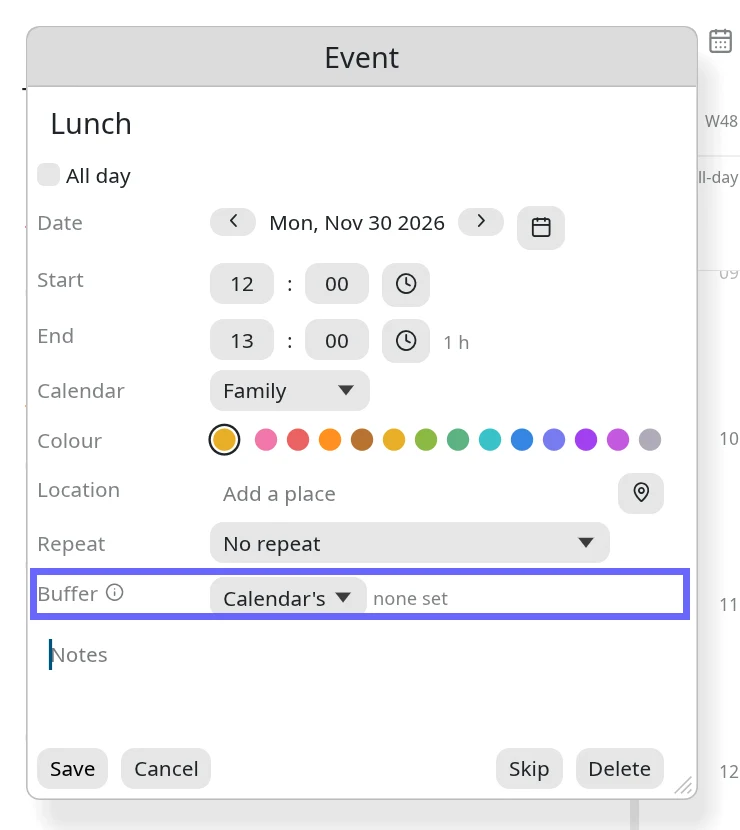
An event has a Calendar, Colour, Location, Repeat and Notes. Buffer keeps time free before and after it; see Buffer time.
Frame editor#
See Frames.