 Katlendar
Guide
Tour of the window
What each part of the Katlendar window does.
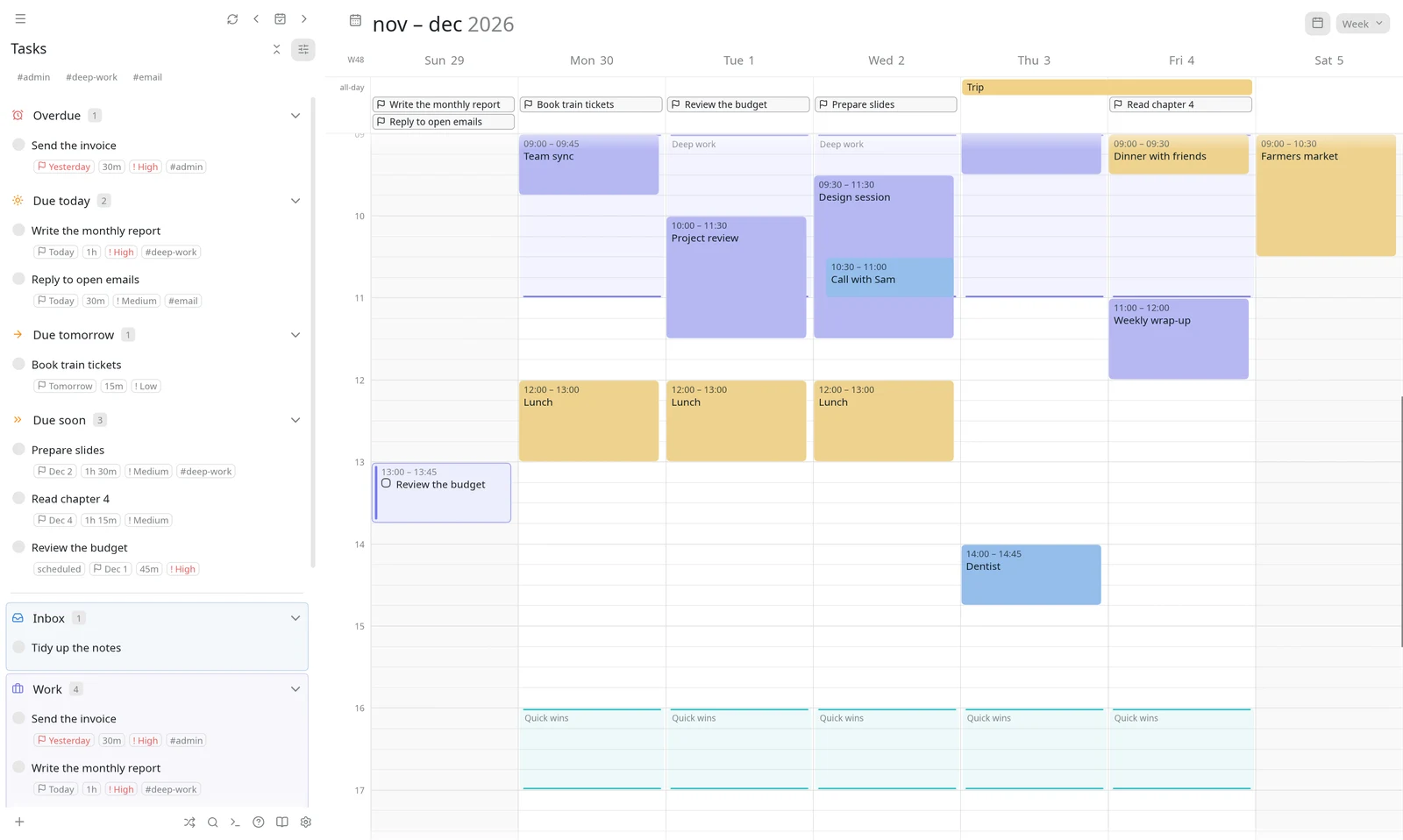
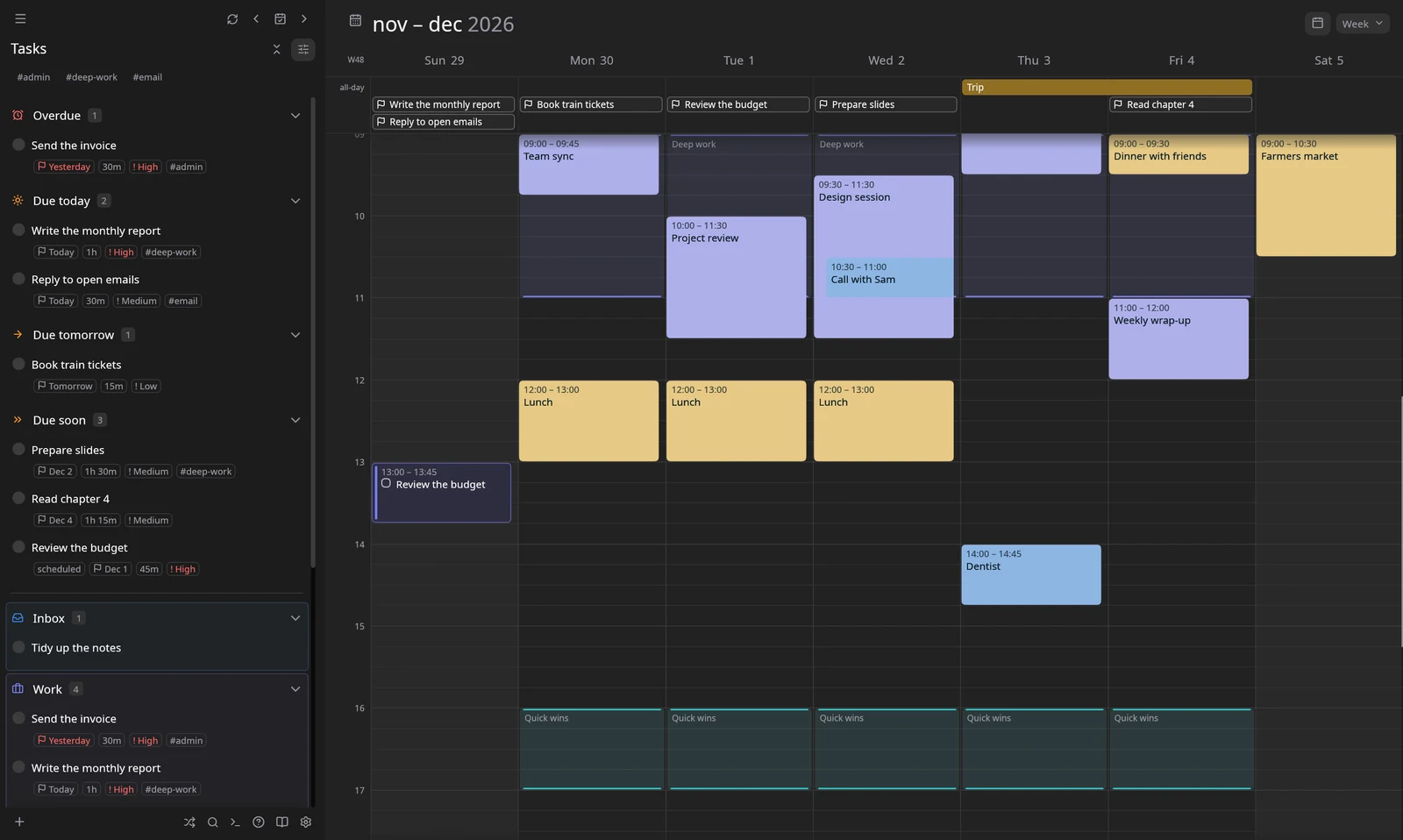
The window has two halves: the task panel with your to-do list, and the calendar.
The task panel#
Your open tasks, grouped two ways:
- By due date at the top: Overdue, Due today, Due tomorrow and Due soon.
- By list below: Inbox and the task lists you make, such as Work.
Each task shows its due date, length, priority and tags as small chips. A task that already has time on the calendar says scheduled.
The tags along the top filter the panel: click #admin to see only those tasks. The sliders button beside the title chooses which groups are shown.
Ctrl+S folds the panel away and brings it back. Its side of the window is set under Task panel position.
The tool bar#
Along the bottom of the task panel:
| Button | What it does |
|---|---|
| + | Makes a new task list |
| Shuffle | Plan my tasks: fits open tasks into free time |
| Magnifier | Search your events and tasks (Ctrl+F) |
| Prompt | The command bar (Ctrl+K) |
| ? | The list of keyboard shortcuts |
| Book | Opens this guide |
| Cog | Settings (Ctrl+,) |

The calendar#
At the top: the refresh button (syncs your accounts), the arrows to move a week back or forward, and the button to jump to today (T). The menu on the right switches between the views.
On the calendar you see three kinds of block:
- Events, such as Team sync, filled with their calendar's colour.
- Task sessions, such as Review the budget, with a round tick box.
- Frames, such as Deep work and Quick wins: pale bands of time kept for a kind of work.
Tasks that are due but not yet scheduled appear in the all-day row with a flag.
Dark mode#
Press \ to switch between light and dark, or choose under Theme.