 Katlendar
Guide
Plan my tasks
How Katlendar fits your open tasks into free time, and the settings that steer it.
Plan my tasks looks at your open tasks and gives each one time on the calendar, around your events. Click the shuffle button at the bottom of the task panel, or run it from the command bar. To plan just one list, open that list's menu and choose Plan this list.
How it decides#
- It takes every open task that has no session yet and has a due date (or no due date, if allowed).
- It skips tasks whose earliest start has not come.
- It hands out frame time first, in the order set by Frame time goes first to.
- The rest goes into free working time (weekdays 08:00 to 18:00), the task due soonest first.
- It looks about a week ahead (two weeks for a task's own frames). A task that does not fit stays in your list; Katlendar says how many sessions it planned and how many tasks did not fit.
Timed events from every calendar count as busy. Frames never do.
The planner never moves events, and never moves task sessions you placed yourself, except flexible ones.
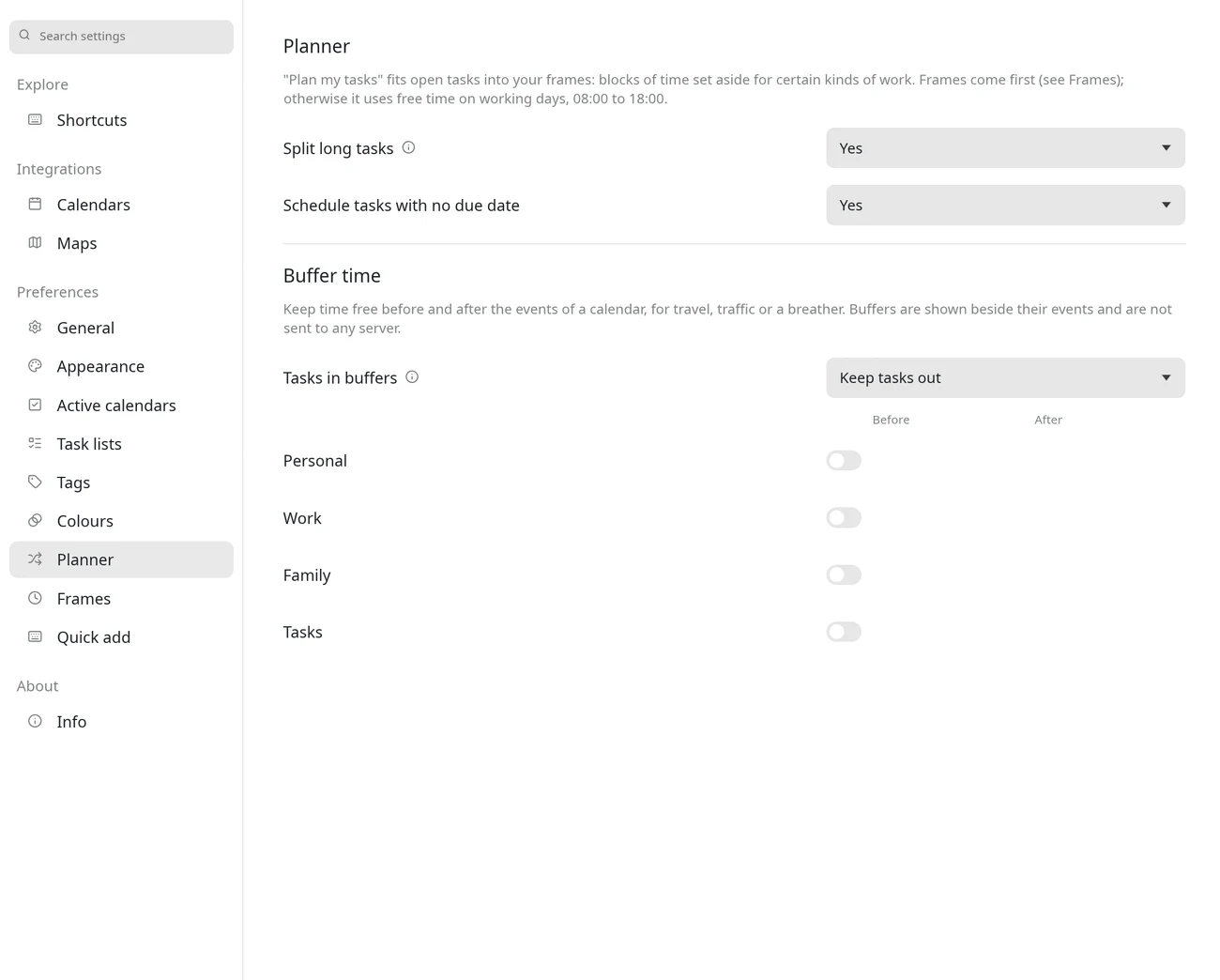
Split long tasks#
Yes lets a task of two hours or more be cut into several sessions, none shorter than 30 minutes. No keeps each task in one piece, so a long task waits for a gap long enough for all of it.
Schedule tasks with no due date#
Yes plans tasks without a due date too, after those that have one. No leaves them in your list.
Flexible tasks#
A task marked Flexible may be moved by the planner. Each time you plan, sessions of flexible tasks that have not started yet are taken off and placed again, so a new urgent task can take their slot.
Mark a task flexible in its editor, or from the Planner section of its block menu. Leave tasks you have promised to do at a set time unflexible.
Buffer time#
Buffers keep time free before and after the events of a calendar, for travel, traffic or a breather. Turn them on per calendar and pick how long Before and After. A single event can have its own buffer in its editor, under Buffer.
Buffers are drawn beside their events. They are not sent to any server.
Tasks in buffers#
- Keep tasks out: the planner never puts a task into buffer time.
- Allow tasks: buffers are only drawn; tasks may go there.
Undo a plan#
Press Ctrl+Z right after planning to take back every session it made.