 Katlendar
Guide
Tags and colours
Tag tasks across lists, and choose where the colour of each block comes from.
Tags#
A tag is a word on a task, such as #admin or #deep-work. Unlike lists, a task can have many tags, so tags group work across lists: #email tasks from Work and from Home.
Add tags by typing #tag in the new task bar, or in the task's Tags field. The tags you use show along the top of the task panel; click one to see only its tasks.
Tags drive two things:
- Frames can take only tasks with certain tags.
- A tag's colour can paint its tasks' blocks.
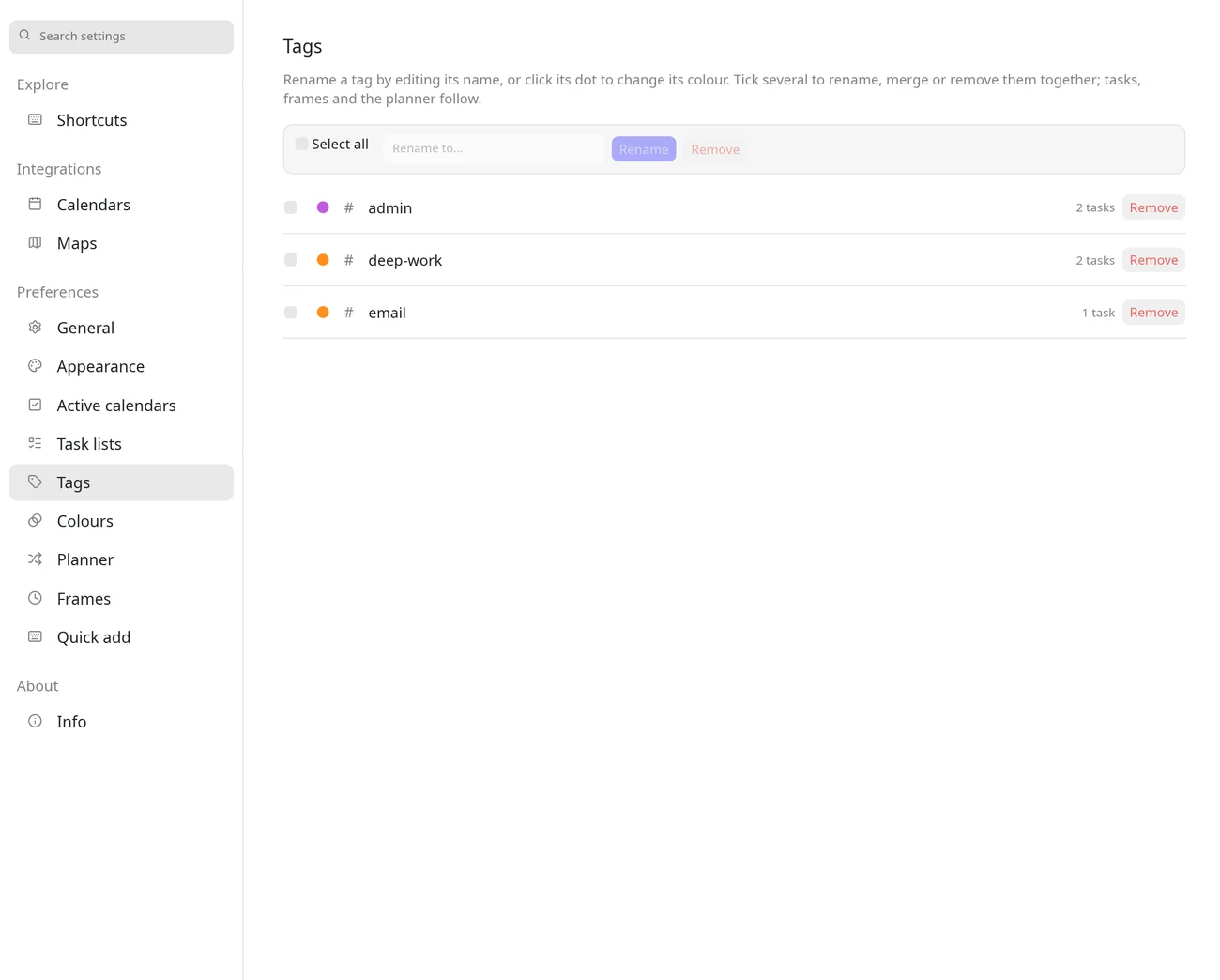
Under Settings › Tags:
- Rename a tag by editing its name. Every task and frame that has it follows.
- Click its dot to change its colour.
- Tick several tags to rename, merge or remove them together.
Colours#
A block on the calendar can take its colour from its task's tag, its task's list or its calendar. Settings › Colours decides which.
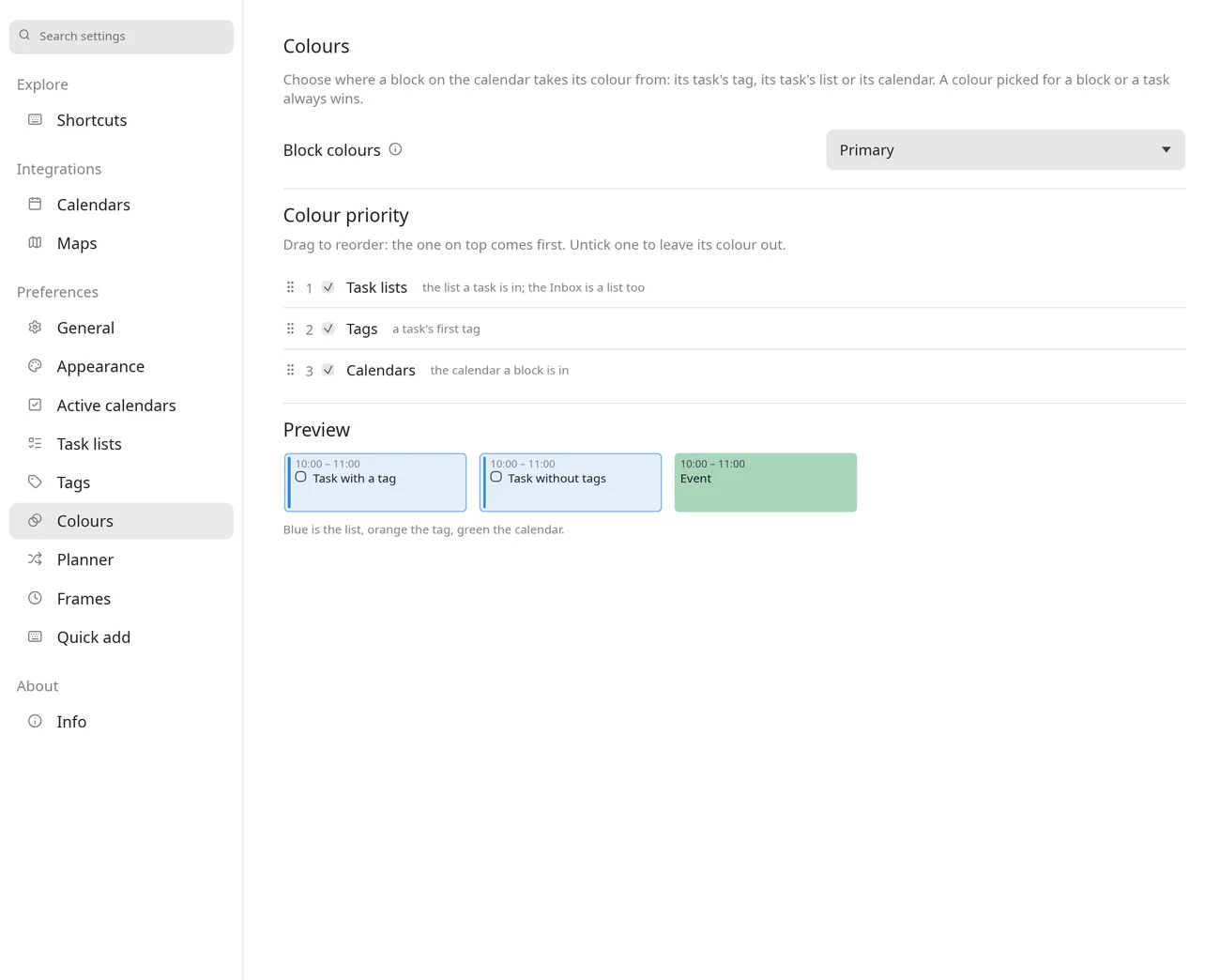
A colour picked for a single block or task always wins over all of these.
Block colours#
- Primary paints a block in the first colour it has, in the order of Colour priority.
- Dynamic (gradient) blends them all: the list's colour along the top, the tag's from the bottom left and the calendar's from the bottom right.
Colour priority#
Drag Task lists, Tags and Calendars into the order you want: the one on top comes first. Untick one to leave its colour out.
For example, with Tags on top, a #deep-work task is drawn in the tag's colour wherever it sits; with Calendars on top, every block on your Work calendar has the same colour.