 Katlendar
Guide
Frames
Keep time free every week for a kind of work, and let the planner fill it with the right tasks.
A frame is a block of time you set aside for a kind of work: Deep work every weekday from 9 to 11, Admin on Friday afternoon, Quick wins after lunch. Frames do not make you busy. They tell the planner where each kind of task belongs.
Frames show on the calendar as pale bands with their name at the top. Tasks placed in them sit on top.
Make a frame#
- Press B, or draw on the calendar and pick Frame.
- Name it, for example Deep work.
- Set the Time, and tick the Days it runs on.
- Repeat every 1 week (or 2 for every other week), and optionally Until a last day.
- Choose which tasks it takes (below), then Save.
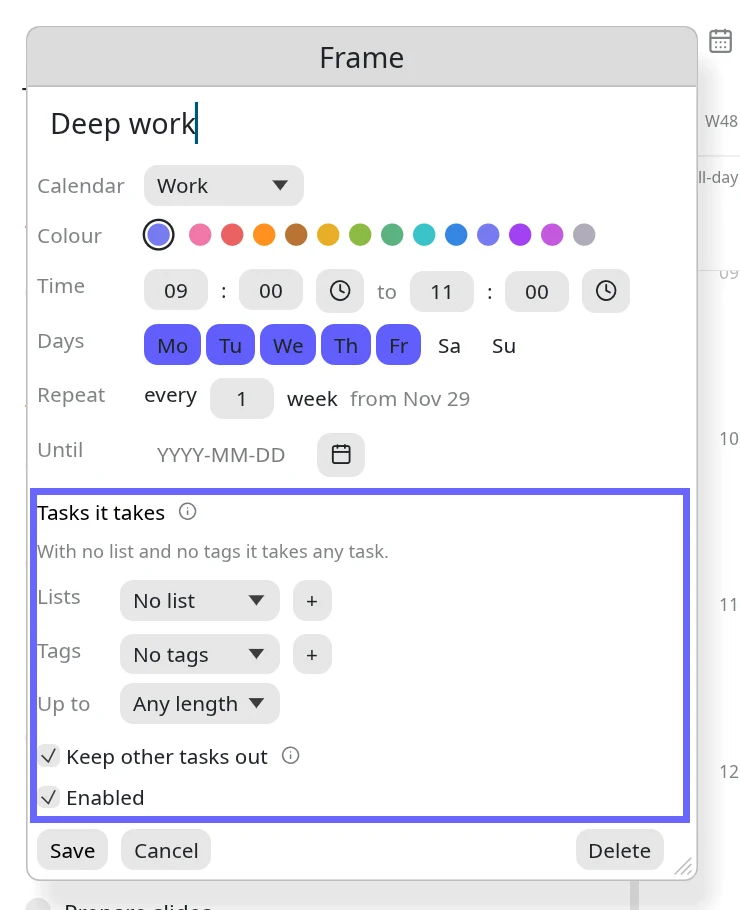
Enabled switches a frame off without deleting it, for a holiday for example.
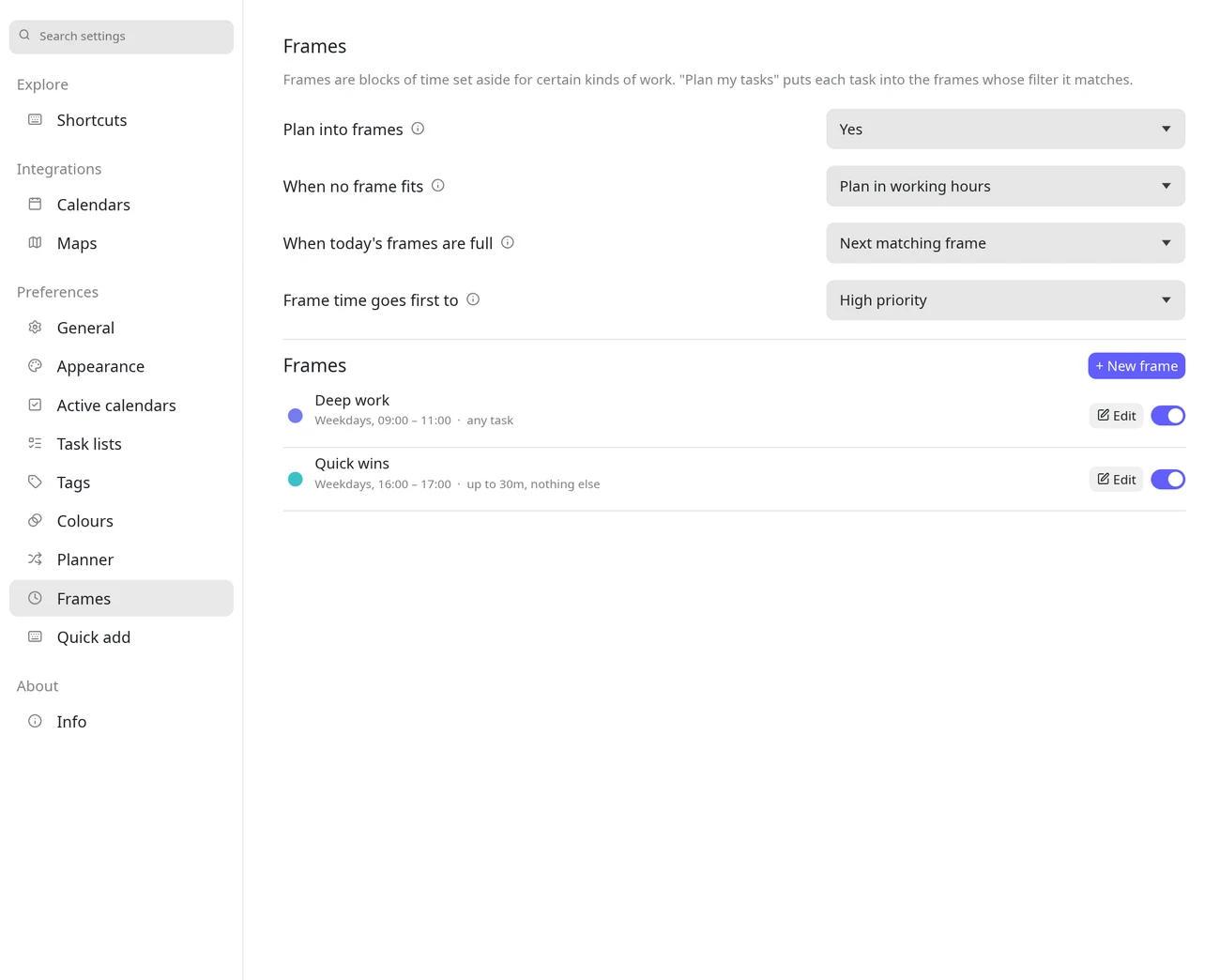
All your frames are listed under Settings › Frames, with what each one takes. Click one to edit it.
Tasks it takes#
Which tasks the planner may put into this frame:
- Lists: tasks of the chosen task lists.
- Tags: tasks with the chosen tags. With several tags, pick Any tag or All tags.
- Up to: only tasks up to this length, so that Quick wins gets the 15-minute jobs and not the 3-hour report.
With a list and tags chosen, a task needs both. With no list and no tags, the frame takes any task.
Keep other tasks out#
Ticked, the planner puts only matching tasks into this frame; the time stays free otherwise. Unticked, tasks that match go here first, and once they are placed, any other task may use the rest of the frame.
Tick it for time you want to protect, like deep work. Leave it unticked for time that is merely a good fit, like Quick wins.
How the planner uses frames#
These settings are on Settings › Frames.
Plan into frames#
Yes puts tasks into the frames whose filter they match. No ignores frames and plans in free working time only, as if you had none.
When no frame fits#
What happens to a task that no frame takes:
- Plan in working hours: it goes into free time on weekdays between 08:00 and 18:00.
- Leave unplanned: it stays in your list until you schedule it yourself. Pick this if you want every task to have a frame.
When today's frames are full#
Where a task goes once its frames have no room left today:
- Next matching frame: it waits for the next frame that takes it, even if that is next week. Your frames stay the only place for that work.
- Free time now: it takes the first free time, in or out of frames. Pick this when getting things done soon matters more than keeping to your frames.
Frame time goes first to#
When there are more matching tasks than frame time, which tasks get the frame:
- High priority: high, then medium, then low, then tasks with no priority.
- Tasks with chosen tags: tasks with any of the chosen tags first.
- Earliest due date: the task due soonest first.
Tasks that do not get frame time go to free time, soonest due first.
Chosen tags#
Shown when frame time goes first to tasks with chosen tags. Type the tags separated by spaces; the # is optional: deep-work admin.
Tips#
- Start with two or three frames. You can always add more.
- Frames of the same kind on different days are one frame with several days ticked.
- Where two frames overlap, a task goes to the one whose filter is more specific.
- If a task never lands in its frame, check that it is not longer than the frame's Up to, and that its due date is not before the frame's next day.