 Katlendar
Guide
Quick add
Type a task and all its details in one line, and Katlendar works out the rest.
Press Ctrl+T anywhere in Katlendar to open the new task bar. Type the task the way you would say it, and press Enter.
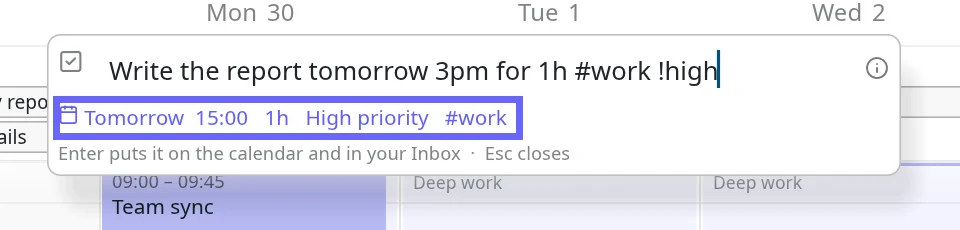
As you type, the chips under the line show what Katlendar has understood. Everything it does not understand stays in the title.
For example, Call the bank tomorrow 3pm 30m !high #admin becomes the task Call the bank, due tomorrow, booked from 15:00 to 15:30, high priority, tagged #admin.
Gym 6pm books a session at 18:00 (today, or tomorrow once 18:00 has passed). A date alone is the due date. Pay rent friday is due Friday and waits in your list.New tasks go to your default task list unless you name another. Esc closes the bar.
What it understands#
Dates#
today, tomorrow, weekdays (fri, friday, next fri), in 3 days, dec 3, 3rd of december, 2026-12-01 and numeric dates such as 12/4 (see Numeric dates).
Times#
5pm, 5 pm, 17:00, at 5, noon, midnight. A range such as 11-1pm sets the start and the length at once.
Lengths#
30m, 1h, 1h30m, 1.5h, 30 min, an hour, half an hour, for 45 minutes.
Repeats#
every day, every weekday, every week, every month, every monday. For example Standup every monday at 9am.
Tags, list and priority#
These need a mark, so that ordinary words in your title stay ordinary. With the standard marks:
| Write | Means |
|---|---|
#work | the tag work |
>Errands | the list Errands |
!high, !h, !1, ! alone | high priority |
!medium, !m, !2 | medium priority |
!low, !l, !3 | low priority |
Keep words in the title#
Put words in "quotes" to keep them as they are: "Meet at 5pm" notes is a task called Meet at 5pm notes with no time.
Settings#
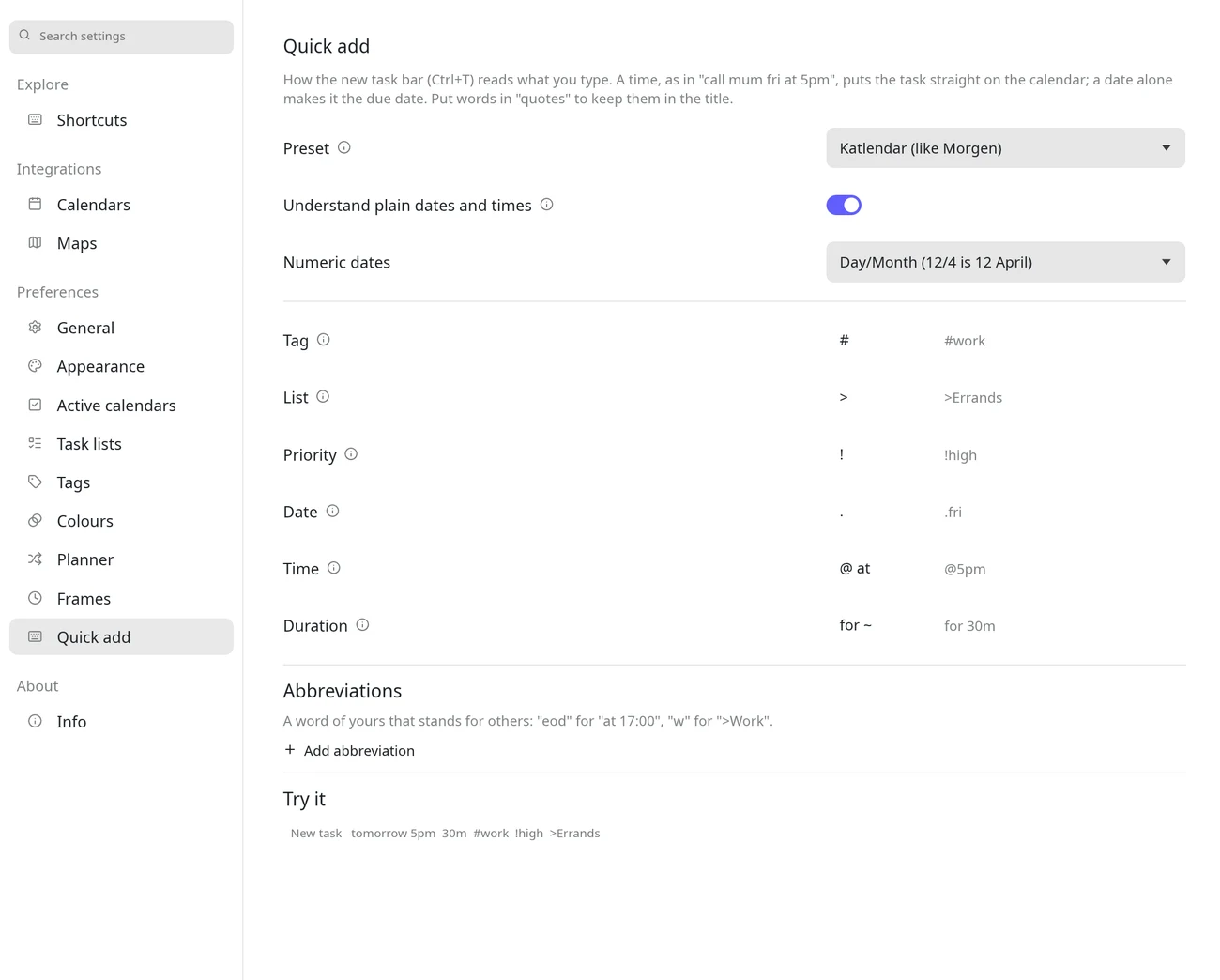
Everything below is on Settings › Quick add.
Preset#
Marks like those of the app you are used to:
| Preset | Tag | List | Priority | Date | Time | Length |
|---|---|---|---|---|---|---|
| Katlendar (like Morgen) | # | > | ! | . | @ or at | for or ~ |
| Todoist | @ or % | # | p1–p4 | at | for | |
| TickTick | # | ~ or ^ | ! | at | for | |
| Plain words (like Things) | at | for | ||||
| My own | your own marks |
Changing any mark below switches the preset to My own.
Understand plain dates and times#
On, tomorrow, fri 5pm and every monday are read without a mark before them. Off, a date needs its mark (.fri in the Katlendar preset) and a time too (@5pm). Turn it off if Katlendar keeps taking words of your titles for dates.
Numeric dates#
Whether 12/4 is Day/Month (12 April) or Month/Day (December 4).
Tag#
The marks for a tag, separated by spaces. A mark of one sign is written onto the value (#work); a mark of two or more letters is a word of its own before it (tag work).
List#
The marks for a task list, as for Tag.
Priority#
The marks for priority. After a mark of letters, such as Todoist's p, the priority is a number: p1 high, p2 medium, p3 low, p4 none.
Date#
The marks for a due date. Empty in most presets: dates are read as plain dates.
Time#
The marks for a time, such as @ and at.
Duration#
The marks for a length, such as for and ~. A length such as 30m is read without a mark too.
Abbreviations#
Short words of your own that stand for longer ones. eod for at 17:00, or w for >Work: then Send report eod w is due at 17:00 in the Work list. Click Add abbreviation, type the short word on the left and what it stands for on the right.
Try it#
Type a line here to see how it would be read, without making a task.