 Katlendar
Guide
Tasks
Tasks, task lists, due dates and priorities, and how a task differs from its time on the calendar.
A task is something you have to do. It lives in the task panel until you tick it off. To work on it, you give it one or more sessions: blocks of time on the calendar. See Blocks.
Add a task#
- Ctrl+T opens the new task bar: type the task and its details in one line.
- Draw a block on the calendar and pick Task.
- In the task panel, open a list's menu to add a task to that list.
What a task has#
| Field | What it is for |
|---|---|
| Due | The day it must be done by. The task panel groups tasks by it, and the planner plans the soonest first. |
| Priority | High, medium, low or none. Shown as !High on the task. |
| Duration | How long the whole task takes. The planner books this much time. |
| List | The task list it belongs to. |
| Tags | Words such as #admin for grouping across lists. See Tags. |
| Location | A place; see Places. |
| Repeat | A task that comes back: once you tick it off, its due date moves on and it opens again. |
| Notes | Anything else. |
| Earliest start | See below. |
| Flexible | See Flexible tasks. |
Click a task in the panel to open it. Tick the round box to complete it.
Earliest start#
The planner leaves a task alone until this day. Use it for work you cannot start yet: Write the summary once the meeting on Thursday is over, or Renew passport no sooner than a month before it expires.
The task still shows in your list, and you can still put it on the calendar yourself.
Due dates and the calendar#
- A task with a due date but no session shows in the all-day row of its due day, with a flag. Turn that off with Due dates on the calendar.
- Drag that flag to another day to change the due date, or into the day's hours to book a session.
- When you put a session after the due date, Katlendar can move the due date for you; see Move task due date.
Task lists#
Lists group tasks by area: Work, Home, Errands. Inbox is always there and catches tasks with no list.
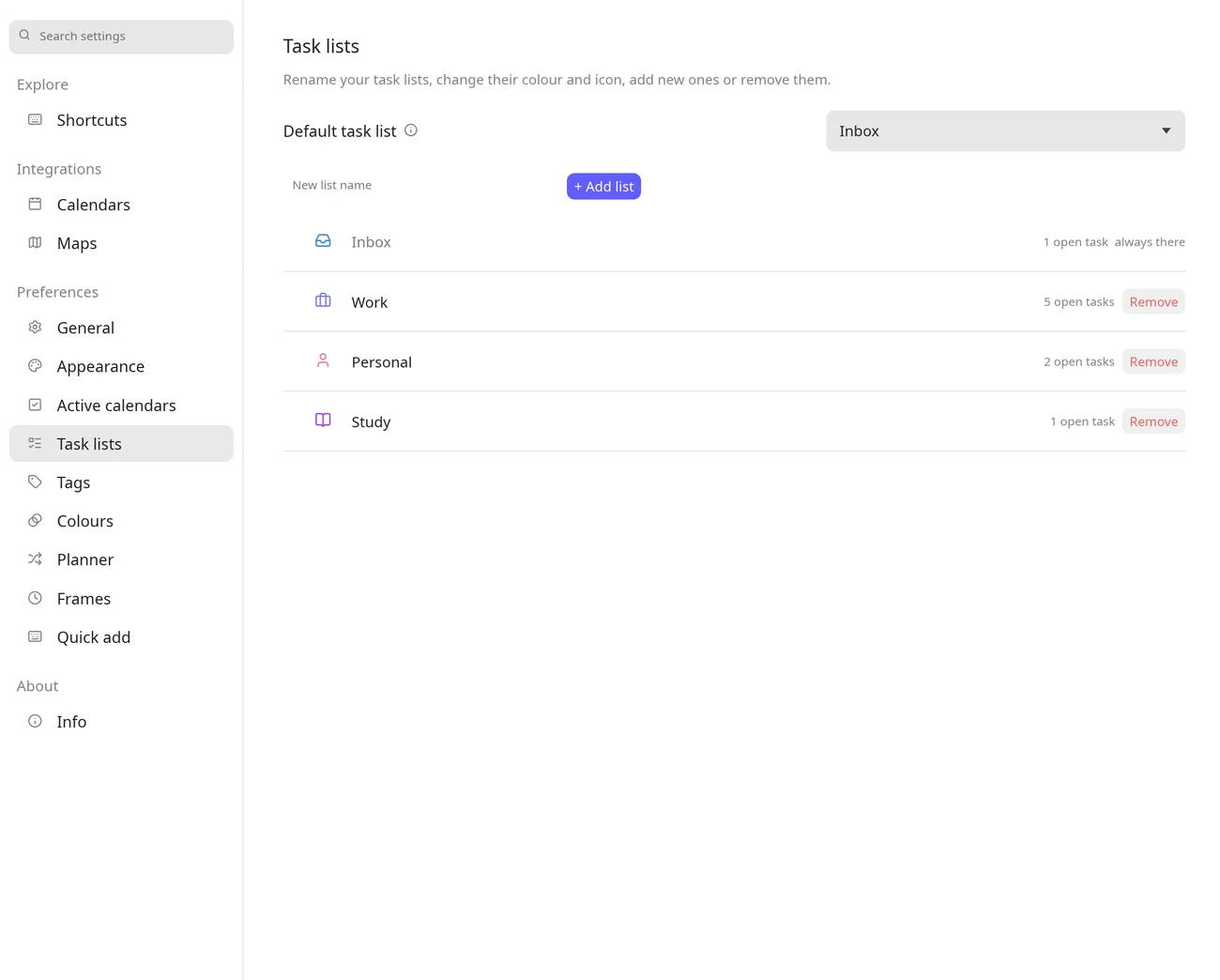
Under Settings › Task lists you can:
- Show or hide a list with the box in front of it.
- Click its colour to change it; the list's colour can paint its tasks' blocks (see Colours).
- Rename it by editing its name.
- Add a list: type a name and click + Add list.
A list from a synced account (a CalDAV server or Todoist) syncs both ways. To stop syncing it, untick it under Settings › Calendars.
Default task list#
A new task goes to this list unless you pick another.
Plan one list#
Open a list's menu in the task panel and choose Plan this list to plan only its tasks. See Plan my tasks.